 landing.fyi
Upload guide
Dynon SkyView flight data log — export & score every landing
SkyView logs every flight automatically. Set the record rate, plug in a USB drive, export the log, and upload the .csv to landing.fyi — every landing scored 0–100.
Covers: SkyView HDX, SkyView SE/Classic, Advanced Flight Systems (AFS) variants
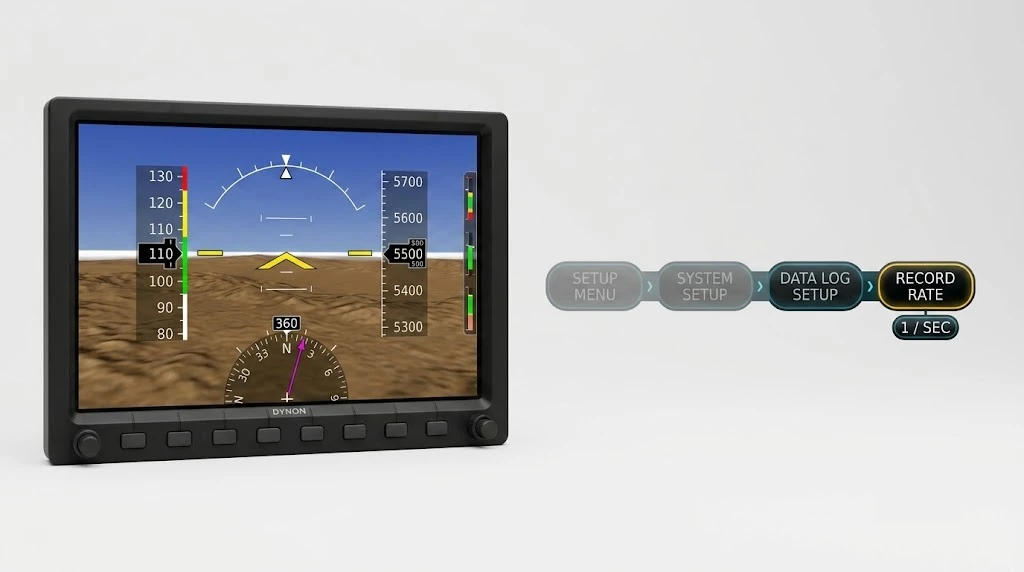
1) Logging is automatic — set the record rate
A Dynon SkyView logs continuously whenever the display is powered on — there’s nothing to arm per flight. The one setting that matters is how often it records. Do it once, on the ground:
- Open the SETUP MENU. With the aircraft stopped, press and hold the two rightmost bottom buttons (7 and 8) together for about two seconds.
- Go to SYSTEM SETUP → DATA LOG SETUP → RECORD RATE.
- Set RECORD RATE to 1 / SEC or faster (up to 16 / sec). A slower rate skips seconds and blurs the touchdown.
2) Plug in a USB flash drive
SkyView exports to a USB flash drive — not an SD card. There’s no card slot on the bezel; the display’s USB port is wired to a panel-mount USB connector next to it.
- Use a FAT32 drive, 32 GB or smaller, with at least 100 MB free. Most small drives are already FAT32 — if not, format it to FAT32.
- Plug it into the panel-mount USB port beside the display, then leave it in and fly normally.
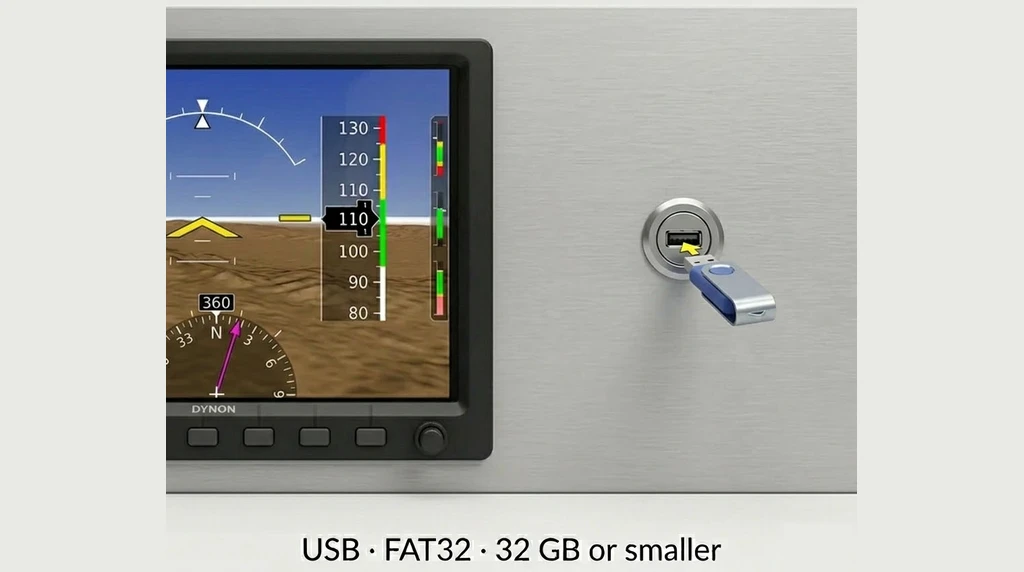
Need one? A 32 GB USB flash drive is in spec — anything 32 GB or smaller, formatted FAT32, works.
3) Export the log and upload it
Back on the ground, with the drive still plugged in:
- Hold buttons 7 and 8 to open the SETUP MENU.
- Go to SYSTEM SOFTWARE → EXPORT USER DATA LOGS.
- SkyView writes the log to the drive. Wait for the export-complete
confirmation, then pull the drive. Grab the …USER_LOG_DATA.csv
file — the one rolling log of your flying (occasionally split into
…PART_01/…PART_02). - Leave the …BLACK_BOX_LOG_DATA.csv file on the drive. It keeps only your last few minutes in the air, so most of your landings aren’t in it.
On a computer
Plug the drive into a USB port and open it.
On a phone
A USB-C or Lightning adapter mounts the drive in the Files app — no app to install.
Grab USER_LOG_DATA.csv file from the USB drive and upload it — landing.fyi scores every landing in it.
Want feedback on your own landings?
landing.fyi scores every landing 0–100 from your avionics log — approach, glidepath, centerline, flare, firmness. Find your greaser.
Get your landing score →Free. Your logs stay private — already have an account? Log in
As an Amazon Associate, landing.fyi earns from qualifying purchases.